
DayZ Linux Launcher (DZLL) Documentation
This is the manual page for DayZ Linux Launcher, In this manual you will find everything you need
to use the app and find your favourite servers.
DayZ Linux Launcher User Manual
When you start DZLL, it performs a short startup sequence:
1. Loads your saved settings (filters, launch options, mod handling preferences, etc.).
2. Loads the server database (servers.db) generated by DZLL-Forge.
3. Builds the server list UI and applies:
- Search Text
- Filter Toggles
- Sort Mode
- Favorites Filter (if enabled)
Server database (servers.db)
DZLL reads a prebuilt database created by DZLL-Forge. This DB contains:
- Server Name
- Address (IP:PORT)
- Map
- Player Counts (when available)
- Flags Like 1PP / Password (where known)
- Server Mod List (Workshop IDs + Names) When Available
- DZLL does not scrape or “hunt” servers itself. It trusts the curated DB output
The main window is centered around the server list.
Each row typically includes:
- Server name
- Map
- Players (when known)
- Ping (when available)
- Indicators (example: 1PP/3PP, lock/password)
- A Join button to start the join workflow
Sorting
You can sort servers using the header controls (common sorts include):
- Ping
- Players
- Recently played (if tracked)
- Possibly name/map depending on build
Sorting updates immediately.
Search
The search box filters servers as you type. It is used for:
- quick lookup by server name/map
- locating a specific IP:PORT quickly
Exact IP:PORT search has a special role when you need to locate a specific server:
- Typing the exact IP:PORT can locate that server directly.
Common filtersDZLL supports several filter toggles (the exact set depends on your build, but commonly includes):
- Favorites only
- Online only
- 1PP or 3PP only
- No password
- Map filter
- Additional “quality of life” filters (e.g., hide test servers if enabled in settings)
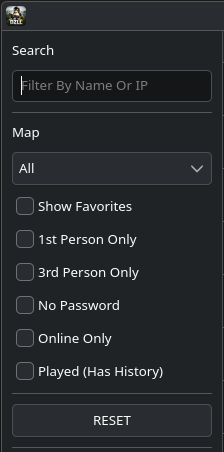 Fig 2. The Search and filter control panel.
Filters are applied live, meaning:
- Toggle changes update the list immediately
- Changes combine with search + sort + favourites
Favourites
You can mark servers as favourites and then:
- Filter to favorites-only
- Keep your regular servers pinned by habit
Favorites are saved locally and persist across restarts
Download DZLL from GitHub Releases. Fedora RPM and Ubuntu DEB packages are included, with SHA256 checksums provided.
- Native Steam with DayZ installed is required
- Flatpak Steam is unsupported
- Launch DayZ from Steam at least once before using DZLL
- SteamCMD is optional and only needed for Advanced SteamCMD Fallback troubleshooting
- Normal users should not need SteamCMD credentials
Settings can be adjusted later as your setup changes. Important options include:
- The Steam Client Workshop backend is the default and recommended mod handler
- Enabling Advanced SteamCMD Fallback reveals its troubleshooting settings
- Native Steam and Workshop path autodetection
- Skip DayZ Launcher and Minimise DayZ Launcher
- Additional launch parameters
- Server Companion visibility and behaviour
Mod Manager shows locally detected Workshop mods and distinguishes subscribed Workshop content from local-only files.
- Unsubscribe selected Workshop mods
- Unsubscribe all confirmed Workshop mods
- Clean up verified local-only files
Steam must be running and online for Workshop checks and management actions. Unsubscribing Workshop mods and cleaning up local-only files are separate operations. If Steam is offline or its state cannot be confirmed, DZLL does not treat the content as safe for cleanup.
Server Companion monitors the selected or joined server and can be shown alongside the server list.
- Shows live status, ping, players, and queue information where available
- Helps track server availability and restarts where detectable
- Can be docked or undocked
- Can offer a Join action from the companion panel when the server is available
Restart and shutdown alerts depend on the server data available to DZLL and should not be treated as perfect detection.
DZLL refreshes and updates in a way designed to avoid UI jitter and “list jumping”.
Typical behavior:
- DZLL keeps the server list responsive while updating server status fields.
- Filters and sort order are preserved during refresh.
- If a server becomes unavailable/offline, DZLL reflects that in its display.
If your build shows “counts in title bar” (servers loaded / players online), these update when refresh updates are applied.
When you press Join, DZLL runs a “preflight” and then performs the join flow.
Join preflight
DZLL checks:
- The server address is valid (IP:PORT)
- Whether mod handling is required (server has mod list and mod handling is enabled)
- Native Steam is installed and available (required; Flatpak Steam is unsupported)
If the server has no mods (or mod handling is disabled)
DZLL launches DayZ via Steam using a connect string:
- Steam starts DayZ
- DZLL launches DayZ through native Steam using the server connect parameters. In normal use DZLL can skip the official DayZ Launcher; if you change the Launch settings, DZLL can use or minimise the DayZ Launcher as part of the launch flow.
If the server requires mods (mod handling enabled)
DZLL runs the mod workflow:
- Reads required mod list for the server (Workshop IDs)
- Uses the Steam Client Workshop backend by default to download/update required mods
- Builds symlinks in the DayZ Launcher “watch folder” inside the Proton prefix
- Prepares the launcher/watch-folder state for compatibility with the required mod setup and launcher-related settings
- Launches DayZ with the server connect details
The goal is to reliably match the way the official DayZ Launcher expects mods to be discovered/loaded on Proton. Users normally do not need SteamCMD credentials.
SteamCMD is not the normal or recommended backend. Use it only when native Steam Workshop handling cannot resolve a specific issue. SteamCMD credentials may be requested only for this optional fallback path; they are not part of normal setup.
Support Development
DZLL is free, source-available community software licensed under the DZLL Community Source Licence v1.0. It may not be sold, paywalled, monetised, bundled into paid services, or used for paid server promotion, paid placement, advertising, affiliate schemes, or referral schemes. Modified versions must remain free, include the licence, keep attribution, and clearly state that they are unofficial.